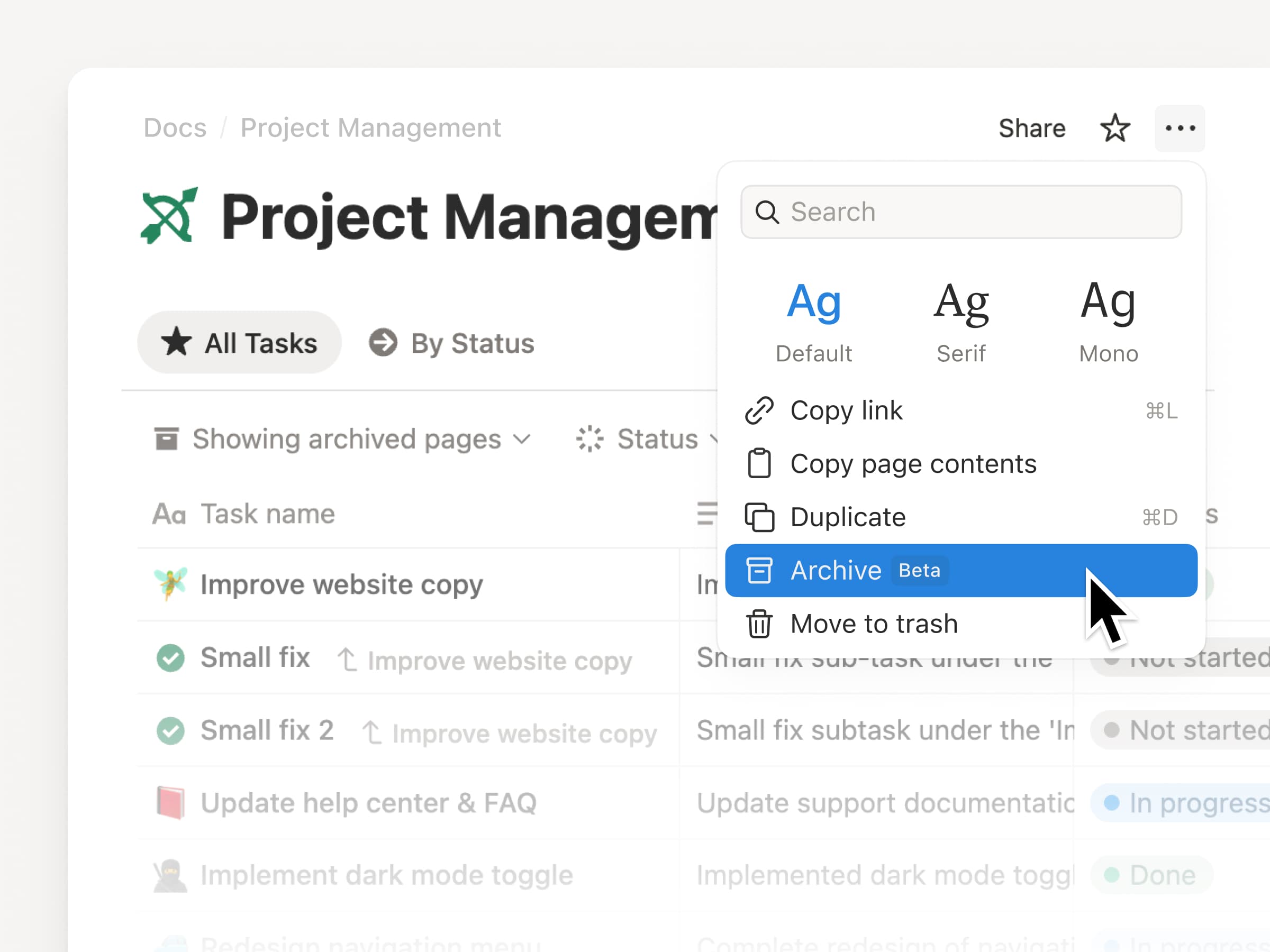
Archive lets you mark pages as outdated to keep your workspace clean and improve your search results.
Archived pages have a banner showing who archived them and when, and they’re hidden from search, the sidebar, and database views by default. Archive a parent page and its sub-pages follow automatically.
To archive, click ••• in the top-right of any page and select Archive.
This month, we have a champagne problem: our engineers are shipping faster than ever, which means Notion 3.4 has too much to cover in a single email.
So let’s start with the fundamentals, like a new dashboard view for your databases, a completely redesigned sidebar (opt-in to try it out!), presentation mode that turns any doc into a slideshow, and a lot more.
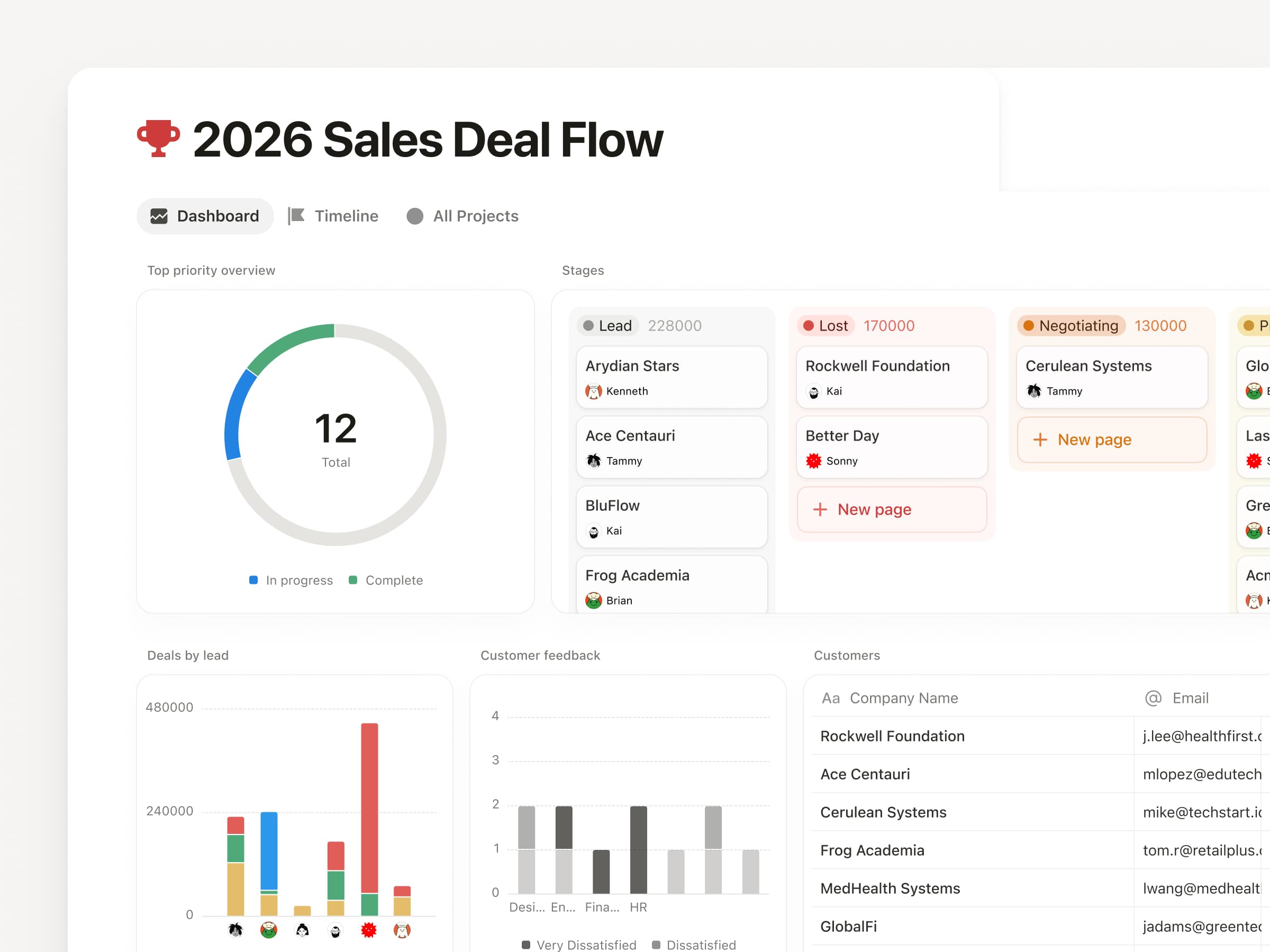
Bring together charts, KPIs, and metrics into one beautiful dashboard, so you can see what’s up and what’s changed. Much easier to create and maintain versus a workaround like a page of linked views.
To get started, try describing the dashboard you want to your Notion Agent. It can build and update for you! Available on Business & Enterprise plans. Learn more →
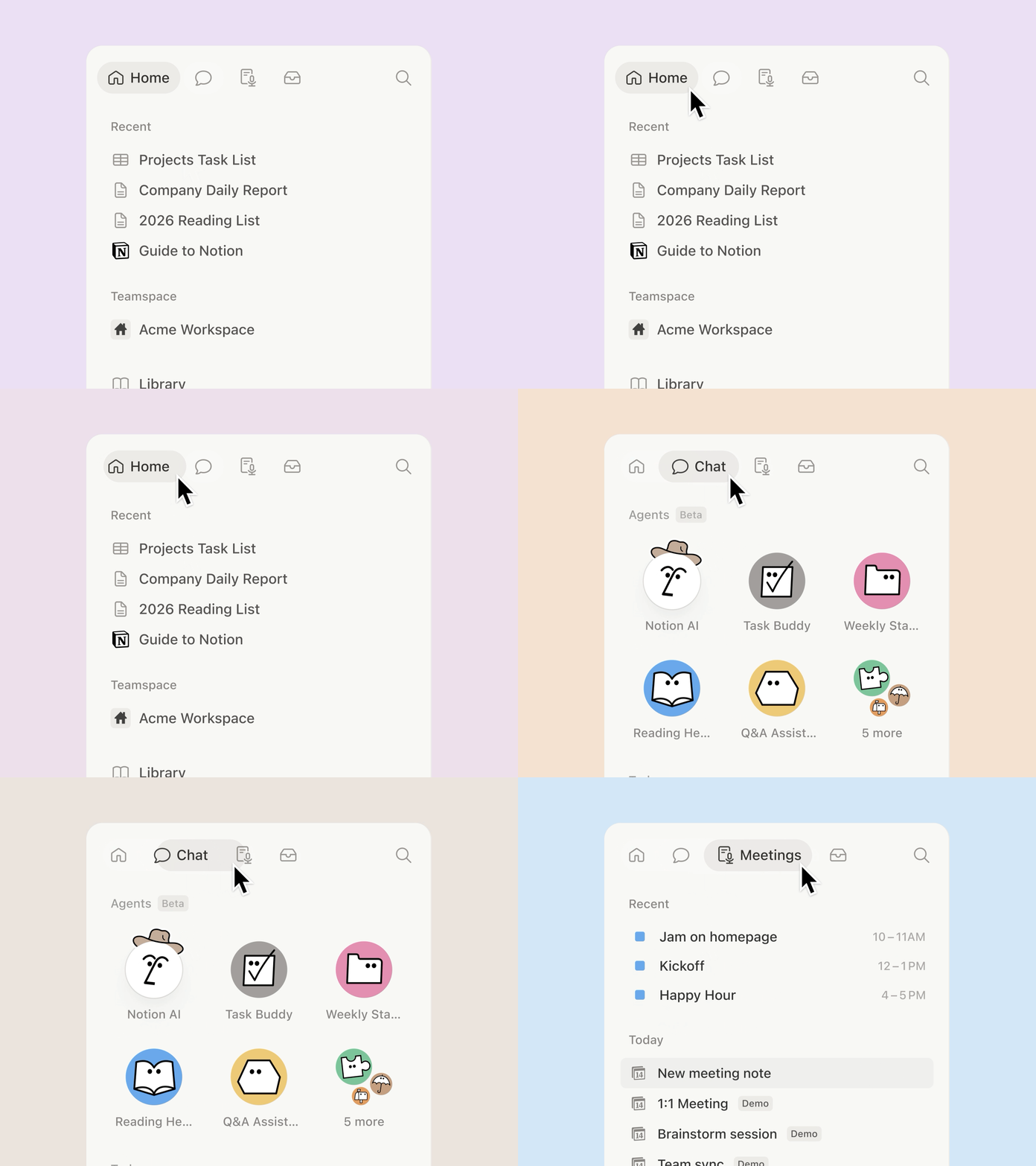
A new sidebar, built for focus
The sidebar was getting far too crowded. So we organized it into four new tabs, with easy access to your pages, agent chats, meetings, and notifications. And it’s way more customizable: you decide which sections to toggle on and off.
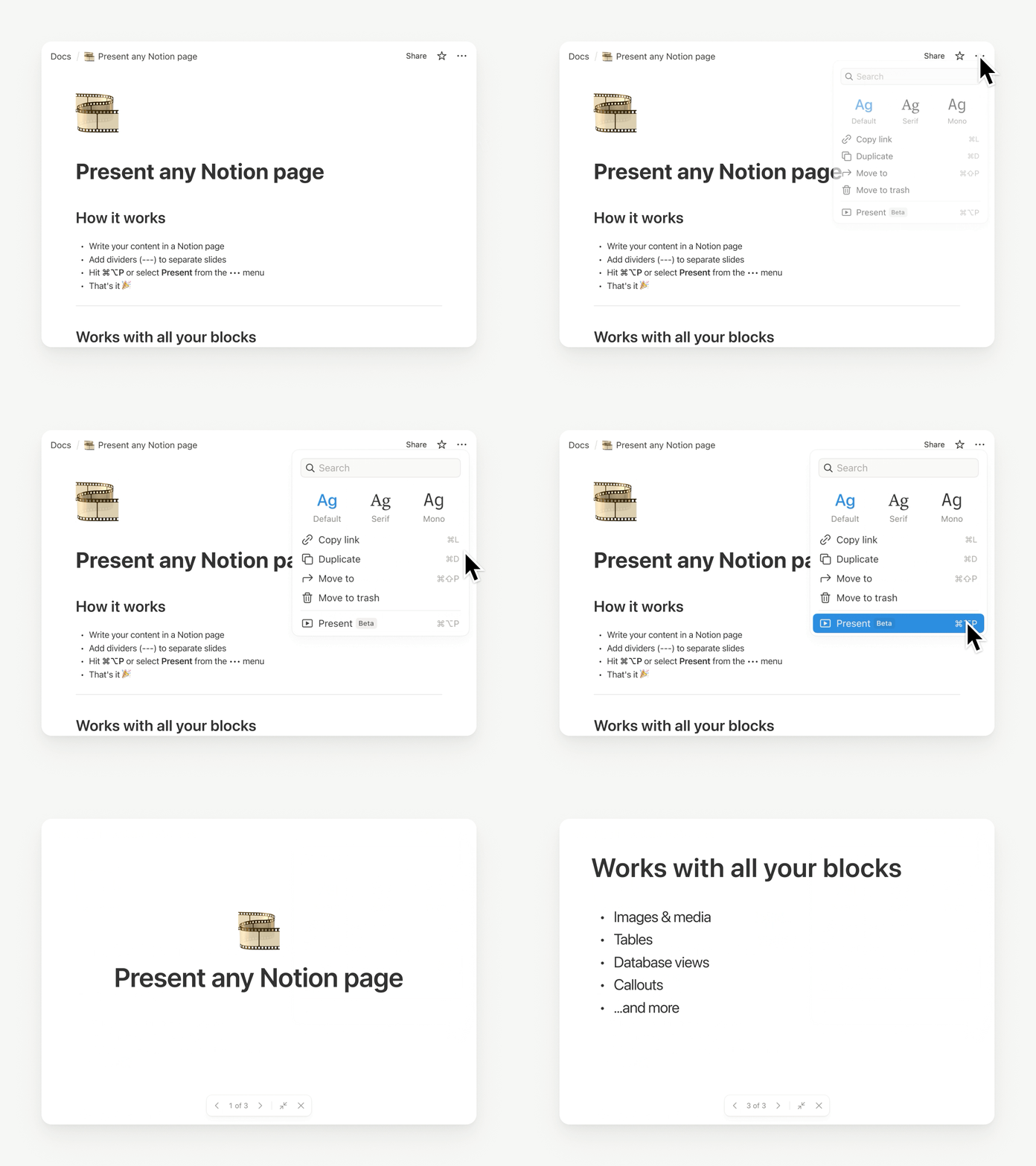
Presentation mode started in a very Notion way: Randy and Cole on our design team woke up one day and decided, “presenting a Notion page should be easy… and fun.” So they built it. Now, you can present directly from a page without having to rebuild your work. Try it with the shortcut ⌘ + opt + p on Mac, or Ctrl + alt + p on Windows.
It’s currently in beta for everyone on Plus, Business, and Enterprise. Check out Randy’s demo.
Here at last: the fabled “tabs” block
Notion HQ had an internal “tabs” block for years, but the secret finally got out. Time to set it free. Now you can organize content into clean, clickable sections, without the maze of subpages. Check it out.
Generate images, charts, slides, diagrams
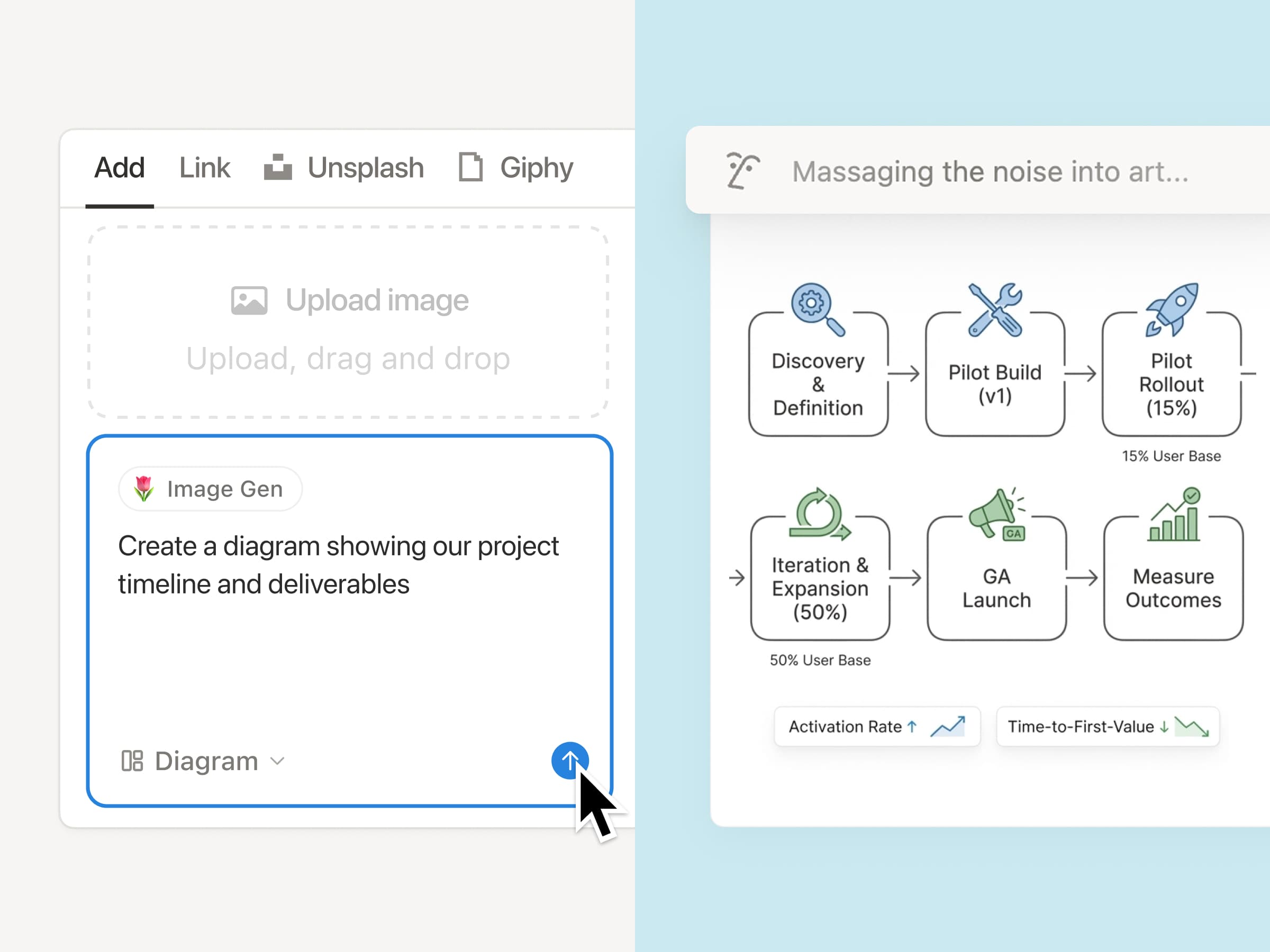
Generate images right where your work lives, so visuals stay connected to the plan, the brief, and the decisions behind them. It’s the Notion way: iterate in context, remix what’s on the page, and turn text into everything from process diagrams to onboarding visuals in seconds. Just ask your agent. Here’s how you can get started.
Archive pages for better search & AI results
Keep your workspace clean as it grows: now you can mark old pages as archived instead of deleting them, so they stay accessible without cluttering search and navigation. Archived pages are hidden from search by default, so they’re a great tool to improve your team’s AI responses.
Markdown Content API: Markdown tools can now read and write Notion directly, which makes integrations simpler and more reliable.
SDK improvements: Integrations are now easier to build and more reliable, with automatic retries, Markdown and Meeting Notes support, and clearer setup warnings, so workflows break less often and ship faster.
Tell us what’s working (and what you want next). We’re building fast.
Cheers,
Ivan
P.S. Notion 3.4 also includes an exciting list of upgrades for Notion AI that are already rolling out now. I’ll send a note about that soon. In the meantime, you can watch this video.
P.P.S. If you’ve been curious about Custom Agents, now’s a good time to try them for free through May 3, 2026. Get started here.
Custom skills let you turn any repetitive AI task into an easily accessible command. Use custom skills from the text selection menu or @mention them directly in an agent chat. Because skills are pages, your whole team can use and build on the same ones.
To designate a page as a skill, open the ··· menu and choose Use with AI → Use as AI skill. Manage everything from Settings → Notion AI → General.
Notion Academy videos and certification programs are now live in 6 new languages— Spanish, Portuguese, Japanese, Korean, French, and German. That means newly localized videos, templates, quizzes, and exercises are available to learners worldwide.
Custom instructions let you define exactly how AI Meeting Notes makes your summaries so they are as useful as possible after a meeting ends. Share context about your team and projects to improve accuracy, or define sections, tone, and length to shape the format.
To get started, go to the footer of any AI Meeting Notes block and select Instructions.
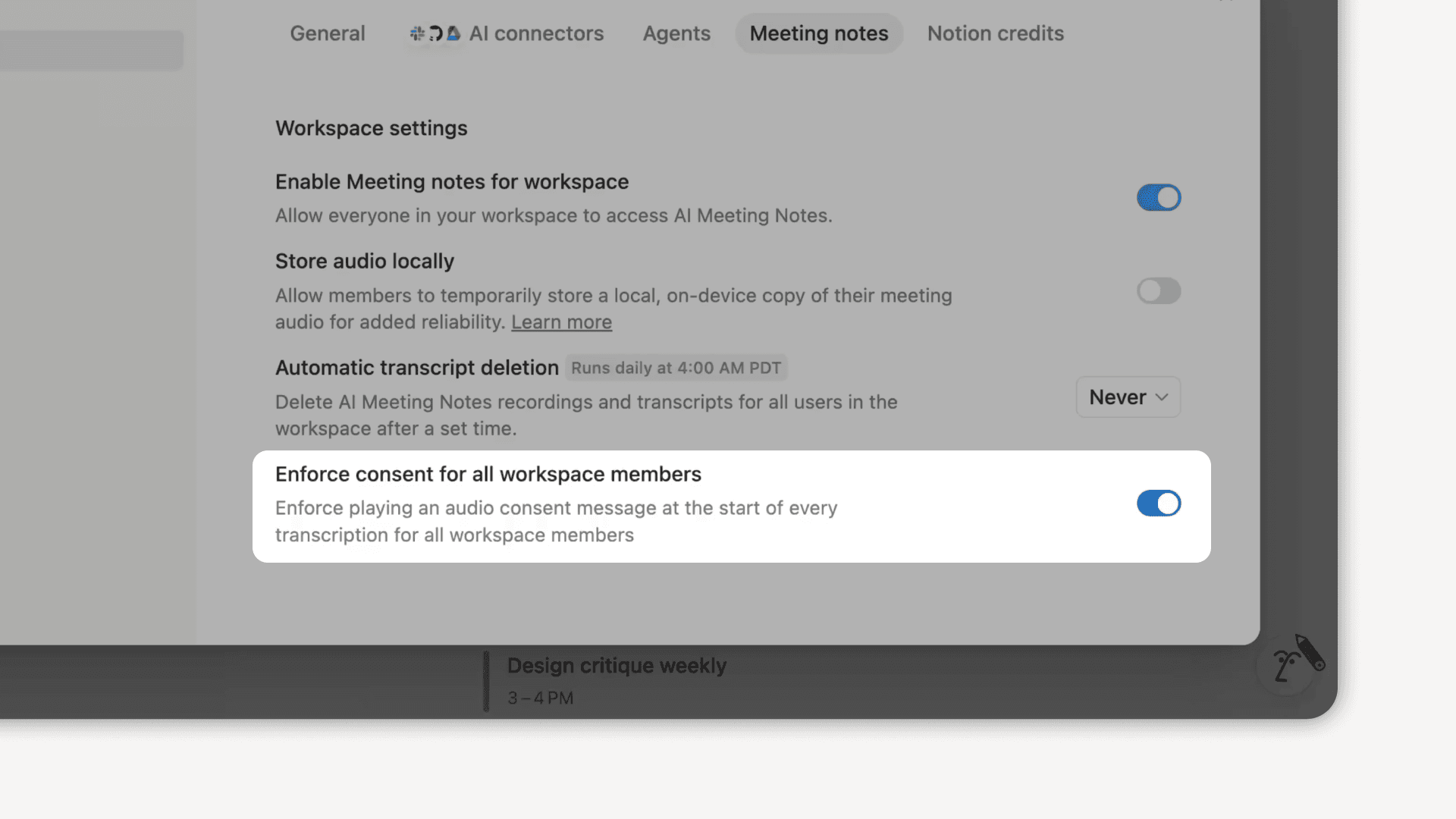
Workspace owners can now set a workspace-wide policy for AI Meeting Notes audio consent. Turn it on, and a consent message will automatically play at the start of each transcription to let others know you are using AI Meeting Notes.
Admins can update this anytime from Settings → Notion AI → AI Meeting Notes and selecting the Enforce consent for all workspace members option.
Notion AI can now search your Salesforce data (accounts, leads, opportunities, and contacts) right alongside everything else in your workspace. Ask questions about your pipeline, deal history, or get a quick summary on a contact without ever leaving Notion. Find AI connectors in your Notion AI settings to get started.
Dashboard views are a new database view for better visibility and context. This lets teams (and agents) easily assemble beautiful, glanceable overviews directly on top of their databases. Combine multiple views, KPIs, and key properties into one “control panel” so you can see what matters at a glance and act quickly.
Notion AI can now generate and edit images right on your page. Create cover images, realistic photos, styled charts, diagrams, and slide visuals, then refine them with follow-up prompts until they look just right. Just type /ai image or ask Notion AI in chat.
GPT-5.4 is now available in Notion’s model picker. This is OpenAI’s latest and most capable model for professional work. Expect faster responses and better token efficiency for your most demanding tasks.